
Selecting and Editing
Selection is set arithmetic: clicking, marquee-selecting, adding, and subtracting can be combined freely. Selected objects are highlighted on the canvas, and the inspector on the right shows their properties in sync.
Click to select, and multi-select
| Operation | Result |
|---|---|
| Click an object | Selects only that object (components, wires, junctions, and text annotations are all clickable). |
| ⇧ + click | Adds the object to the current selection. |
| ⌘ (or ⌃) + click | Toggles: adds it if unselected, removes it if already selected. |
| ⇧⌘ + click | Removes the object from the selection. |
| ⌘A | Selects all editable objects on the current page. |
| Click in empty space / Esc (when nothing else is in progress) / ⇧⌘A / 取消选择 (Deselect) in the right-click menu | Clears the selection. |
Marquee selection: the drag direction decides the mode
Press and drag from an empty area and a marquee rectangle appears. The drag direction decides the hit rule, matching the window/crossing selection of mainstream CAD:
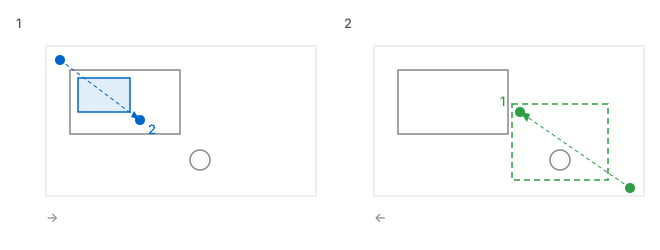
The marquee only covers objects on visible and unlocked layers; the result is committed in one go when you release the mouse, so no repeated recomputation happens during the drag.
Moving
- Drag an already selected component: the whole selected component set moves by the same grid-snap increment, so nothing drifts apart.
- Wire endpoints attached to components follow automatically; text annotations, junctions, and standalone wires can still be dragged individually.
- During the drag only a preview is shown; releasing the mouse registers a single undo step.
- While the canvas has focus, the arrow keys nudge the selected objects: one grid step (5 mm by default) per press, or 10 steps with ⇧; each press is one undo step.
- There is no copy & paste and no cut: to move content across pages or documents you must redraw it, or use an imported underlay as a visual reference.
The Arrange menu
排列 ▸ 对齐 ▸ (Arrange ▸ Align ▸ — the canvas right-click menu has the same submenu) provides nine commands:
| Command | Selection size required | Notes |
|---|---|---|
| 对齐到网格 (Align to Grid) | 1 object is enough | Snap the origins of the selected components onto grid intersections. |
| 左对齐 / 水平居中 / 右对齐 (Align Left / Center Horizontally / Align Right) | ≥ 2 components | Aligns by each component's actual graphic bounds, not its declared size. |
| 顶对齐 / 垂直居中 / 底对齐 (Align Top / Center Vertically / Align Bottom) | ≥ 2 components | Same as above, vertically. |
| 水平等距分布 / 垂直等距分布 (Distribute Horizontally / Distribute Vertically) | ≥ 3 components | The first and last stay put; the middle items are re-spaced evenly. |
Alignment and distribution apply to components only — wires, junctions, and text do not take part.
Warning
Components of different widths can end up off the grid after edge alignment. “左对齐” (Align Left) pulls the bounds to the same X, but the movement itself is not necessarily a whole multiple of the grid spacing, so the aligned origins may sit away from grid points — an inherent consequence of every edge-alignment tool. If you need grid points, run Align to Grid, or align first and then run it once.
Other editing actions
| Action | Where | Shortcut |
|---|---|---|
| Rotate 90° | 排列 ▸ 旋转 90° (Arrange ▸ Rotate 90°), the right-click menu, the inspector button | ⌘R |
| Create a copy | 排列 ▸ 创建副本 (Arrange ▸ Duplicate), the right-click menu | ⌘D |
| Delete | 排列 ▸ 删除 (Arrange ▸ Delete), the right-click menu | ⌘⌫, or a lone ⌫ / Fn⌫ |
| Clear the whole selection | Edit ▸ 取消选择 (Deselect), or Deselect in the right-click menu on empty space | Esc (when no operation is in progress), or ⇧⌘A |
| Nudge the selection | Arrow keys while the canvas has focus | ←↑→↓; add ⇧ for 10 steps. With nothing selected the keys pan the view instead |
| Restore automatic routing | 排列 ▸ 恢复自动布线 (Arrange ▸ Restore Auto Routing), or the wire's context menu | ⇧⌘K (selected wires, batch, one undo step) |
Right-click menu quick reference
- On a component: Rotate 90°, Duplicate, an Align ▸ submenu (appears when ≥ 2 components are selected), Delete.
- On a wire: 恢复自动布线 (Restore Auto Routing) appears when manual control points exist, plus Delete.
- On a junction: Delete (breaks only the connection; the wires remain).
- On text: Delete.
- On label text (device tag, wire number, potential name): 恢复标签自动布局 (Restore Label Auto Layout).
- On empty space: 全选 (Select All), Deselect (when there is a selection), 显示网格/隐藏网格 (Show/Hide Grid), 适合窗口 (Fit to Window).
Double-click
- Double-click a solid (manual) control point on a wire: the control point is deleted and the path is recomputed.
- Double-click an interruption point: jumps to its same-named paired point (works across sheet pages too).
- Double-click cross-reference text: jumps to the referenced coil or contact.
- Double-click the body of a coil or contact: jumps to the first cross-reference of that device.
- Double-click a label that was dragged by hand: restores its automatic layout.
- Double-clicking empty space or a component does not zoom and does not open an editing dialog — text annotation content can only be changed in the inspector.