
Export
Every export lives in the File ▸ 导入导出 (Import and Export) menu, split into four groups: 报表 (Reports), 图形导出 (Graphics Export), CAD 导入导出 (CAD Import and Export) and VSDX 导入导出 (VSDX Import and Export). In the free version the graphics group is labelled 图形导出(免费版含水印) (Graphics Export – free version includes a watermark).
Formats at a glance
| Menu item | Scope | Licence | Default file name |
|---|---|---|---|
| 导出 PDF(全部图纸)… (Export PDF – all sheets…) | The whole project, one page per sheet, page size = that sheet's format (millimetres converted at 72/25.4) | 免费(含水印) (Free, with watermark) | 项目名.pdf |
| 导出 PNG(当前图纸)… (Export PNG – current sheet…) | The current sheet | Free, with watermark | 项目名-页名.png |
| 导出 SVG(当前图纸)… (Export SVG – current sheet…) | The current sheet | Free, with watermark | 项目名-页名.svg |
| 导出 DXF(当前图纸,Pro)… (Export DXF – current sheet, Pro…) | The current sheet | Pro | 项目名-页名.dxf |
| 导出 VSDX(全部图纸)… (Export VSDX – all sheets…) | The whole project | Pro | 项目名.vsdx |
In these patterns, 项目名 stands for the project name and 页名 for the sheet name. The project name is currently fixed as 未命名项目 (Untitled Project) (there is no renaming interface), so default file names
usually start with it; the / and : characters in a name are replaced with -. You can type a proper drawing
number straight away in the save panel.
PNG is rendered at 300 DPI and the resolution is written into the metadata, so it prints as soon as you drop it into Word or an e-mail; PDF and SVG are vector, so they never blur when scaled. Content on hidden layers never appears in any export, while imported underlays are output as usual.
The free version's watermark
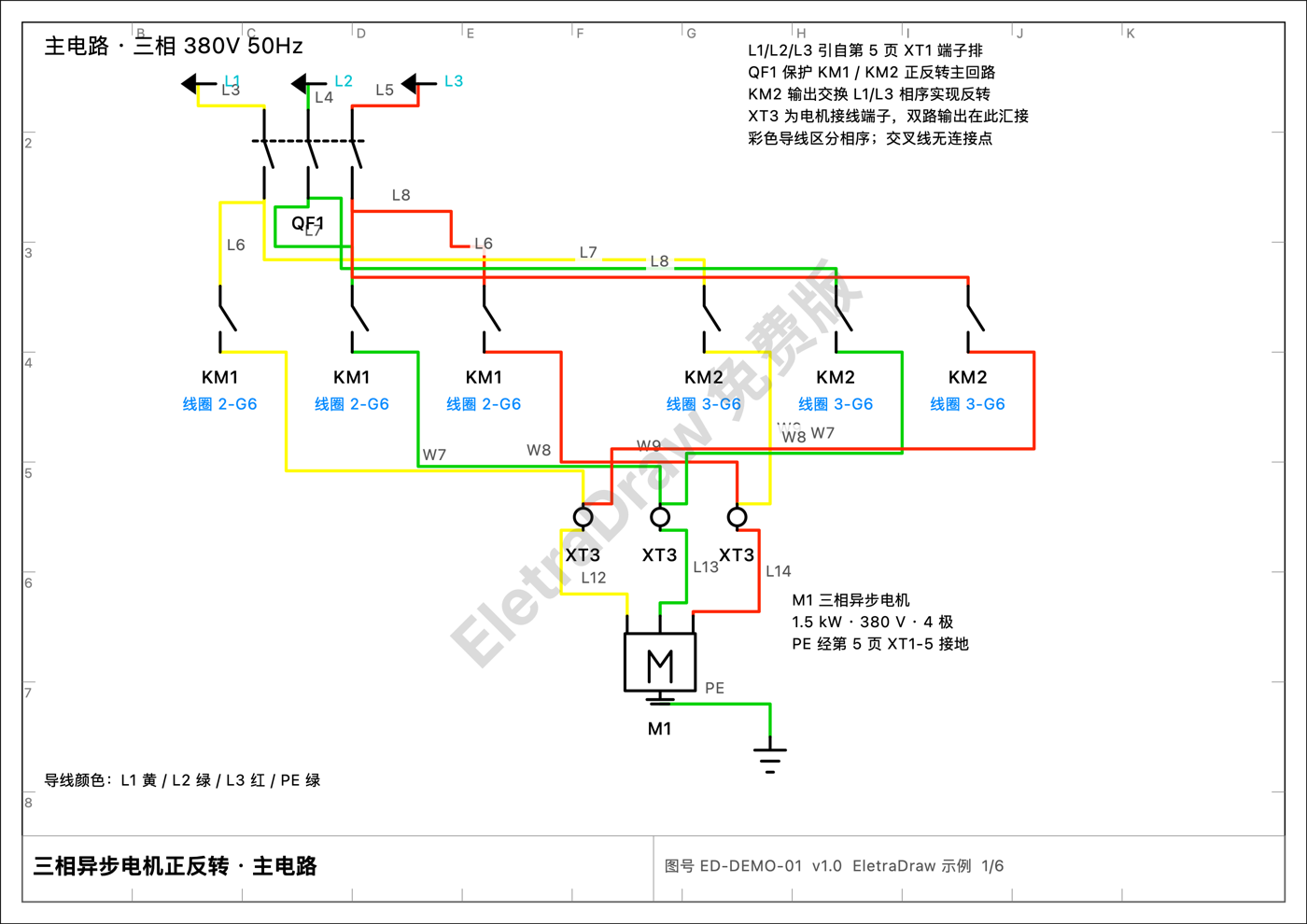
In free exports of PDF, PNG and SVG the line EletraDraw 免费版 (EletraDraw Free Edition) is placed in the middle of the sheet: 30 pt bold, roughly 35% grey, 22% opacity, rotated 45° counter-clockwise. DXF and VSDX get no watermark — they are Pro features anyway. After buying Pro the same menu produces clean files, with nothing to reconfigure.
Cross-references in exports
- PDF / PNG / SVG: only Pro draws the cross-reference lines next to a device tag; the free version leaves them out, exactly as they are absent on screen.
- DXF / VSDX: always include the cross-reference text.
- Wire numbers, potential names, device tags and the four title-block fields are output in every format.
Fidelity for CAD and Visio users
| Format | What you get | What you lose |
|---|---|---|
| A vector image identical to the screen, with selectable text, ready to print | Objects can no longer be edited | |
| PNG | A 300 DPI bitmap | Text is not selectable and the image cannot be rescaled |
| SVG | Vector and text elements, good for web pages or assembling drawings | No CAD semantics |
| DXF | Lines, polylines, circles and text flattened into a few layers (including FRAME and similar), with line widths written in real millimetres |
No blocks, no attributes, no electrical connectivity; you cannot import it back as editable components |
| VSDX | Shapes and text that Visio can read, one drawing sheet per Visio page | Geometry is flattened, no connection points, no dynamic connectors, no shape data; in Visio it is just a pile of graphics |
Printing
File ▸ 打印… (Print…), ⌘P, prints every sheet of the document in sheet order. To print just one sheet or a range, use the Pages control in the standard macOS print panel.
- Printing uses the same vector pipeline as 导出 PDF(全部图纸) (Export PDF – all sheets): frame, title block and underlays are printed, hidden layers are not.
- The print panel defaults to the current sheet's paper format (A4, A3…, landscape). When a document mixes formats, each page is scaled down to fit the chosen paper — never enlarged — and is auto-rotated when needed.
- The free version adds the EletraDraw 免费版 watermark on every page and omits cross-references; Pro prints no watermark and includes cross-references.
- For 1:1 paper delivery (for example to a print service), still use 导出 PDF(全部图纸).
Export recommendations
- For review and delivery: 导出 PDF(全部图纸) (Export PDF – all sheets) — one drawing per page, title block included.
- For pasting into documents or e-mail: 导出 PNG(当前图纸) (Export PNG – current sheet).
- For the structural and automation disciplines: 导出 DXF(当前图纸) (Export DXF – current sheet), and hide what they do not need with layers beforehand.
- For material and wiring lists: BOM / 端子表… (BOM / Terminal Table…) in the 报表 (Reports) group, then export CSV or Excel from inside that window.